Getting Started
Create a tenant, register a domain and an application, and get your API credentials.
Before you build with the Signatures API, you need to configure your environment in the Idura Dashboard. It takes about two minutes and gives you the client credentials for calling the Signatures API.
A tenant represents your organization’s isolated environment at Idura.
Your free account includes a sandbox with unlimited test signature orders, so you can build and test your integration without any cost or commitment.
Every signing request runs through your Idura domain.
.test.idura.broker domain.acme-corp.test.idura.broker.An application represents the backend service you are building, for example your Node.js or C# service that creates signature orders. Creating an application generates the client credentials you’ll need to call the Signatures API.
urn:my:application:identifier:123) or set your own.You’ll be able to update your application settings later.
Your client ID and client secret will appear in a popup. Copy and save them in a secure location, then use them in your code to integrate with the Signatures API.
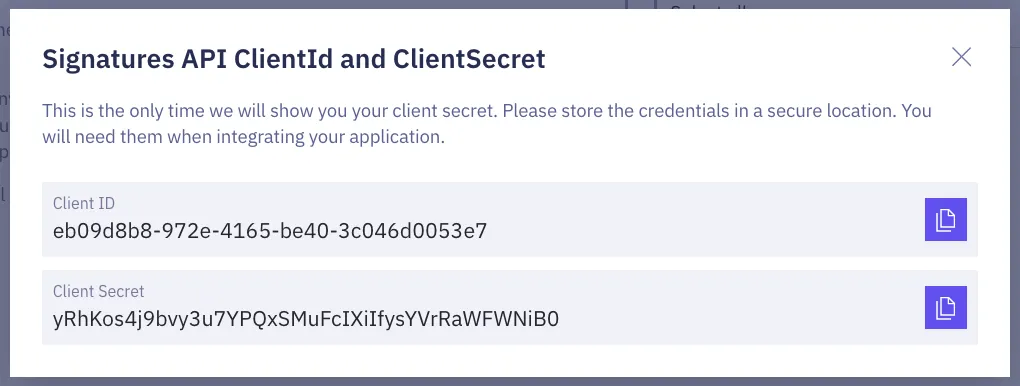
Idura stores the client secret as a hash, so once you close the popup you cannot read it again. If you lose it, create a new client ID and secret pair from the API section of your application settings, then update both values in your code.
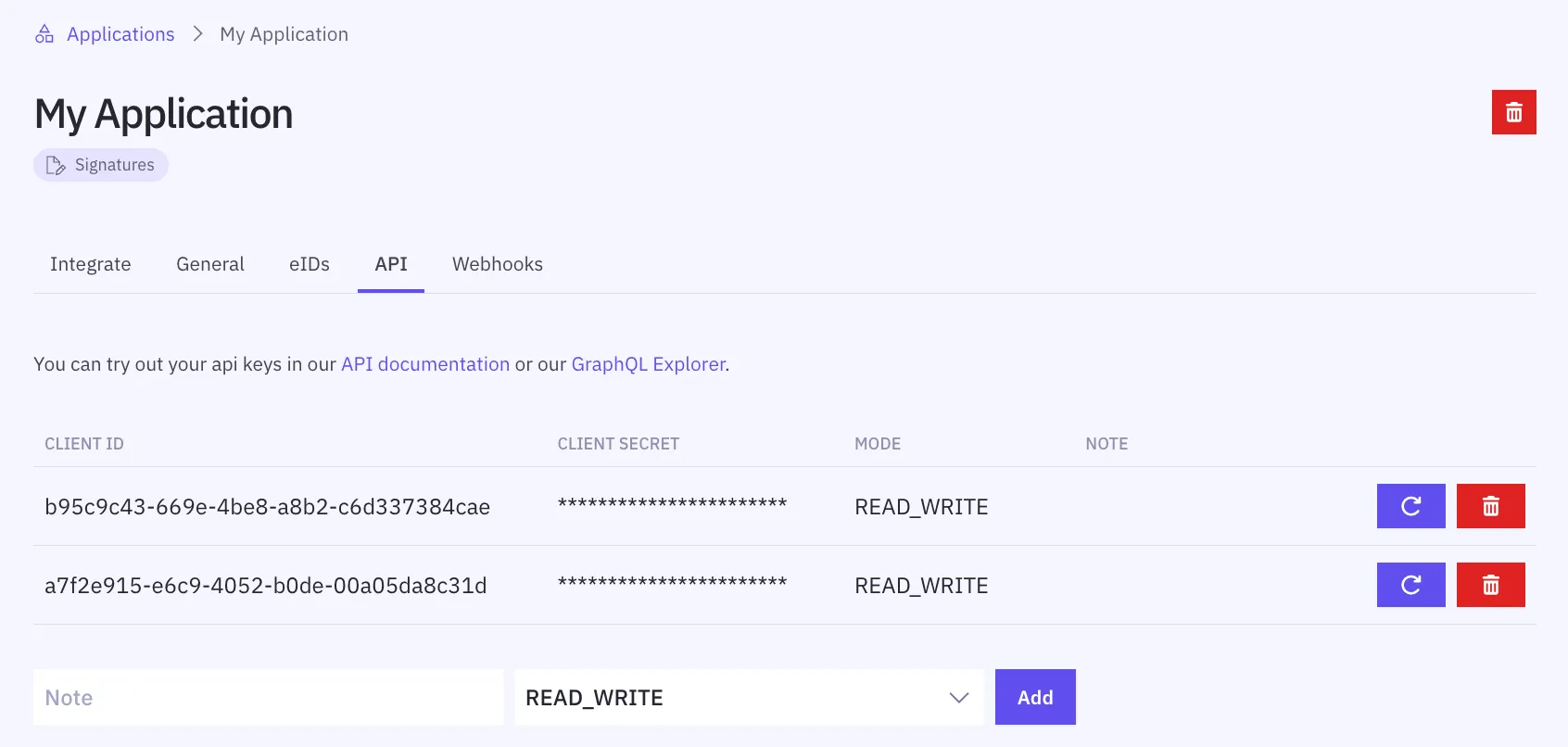
Your Dashboard is configured and your API credentials are ready.
To test document signing, you need to create a test user for the eID(s) you’re planning to use. Note that you can’t use your real, personal eID in a Test environment.
Ready to test? Create your first test user.