Integrations
This tutorial demonstrates how to integrate MitID, Swedish BankID, Norwegian BankID and more eIDs with Firebase using Idura Verify.
Firebase provides two options for authenticating users: the simpler Firebase Auth and the more comprehensive Firebase Authentication with Identity Platform.
The Identity Platform supports OpenID Connect authentication, so you can leverage Idura as an OpenID provider to authenticate your users in web apps, on Android, and on Apple platforms.
In the following tutorial you will first create and register your Idura application, then configure Firebase Authentication with Identity Platform using Idura as an OpenID Connect provider. Finally, you will add the Callback URL from Firebase to your Idura application.
Once you register your application at Idura Verify, you will have access to the following information necessary for leveraging Idura as an OpenID Connect provider in Firebase Authentication with Identity Platform:
urn:idura:samples:firebase for this example.acme-corp.idura.broker.You can now configure Firebase Authentication with Identity Platform to use Idura Verify as an OpenID Connect provider. Your next steps may be slightly different depending on the platform of your choice. The steps below are written mainly for web applications. Alternatively, you can follow Firebase documentation for web applications, iOS, or Android.
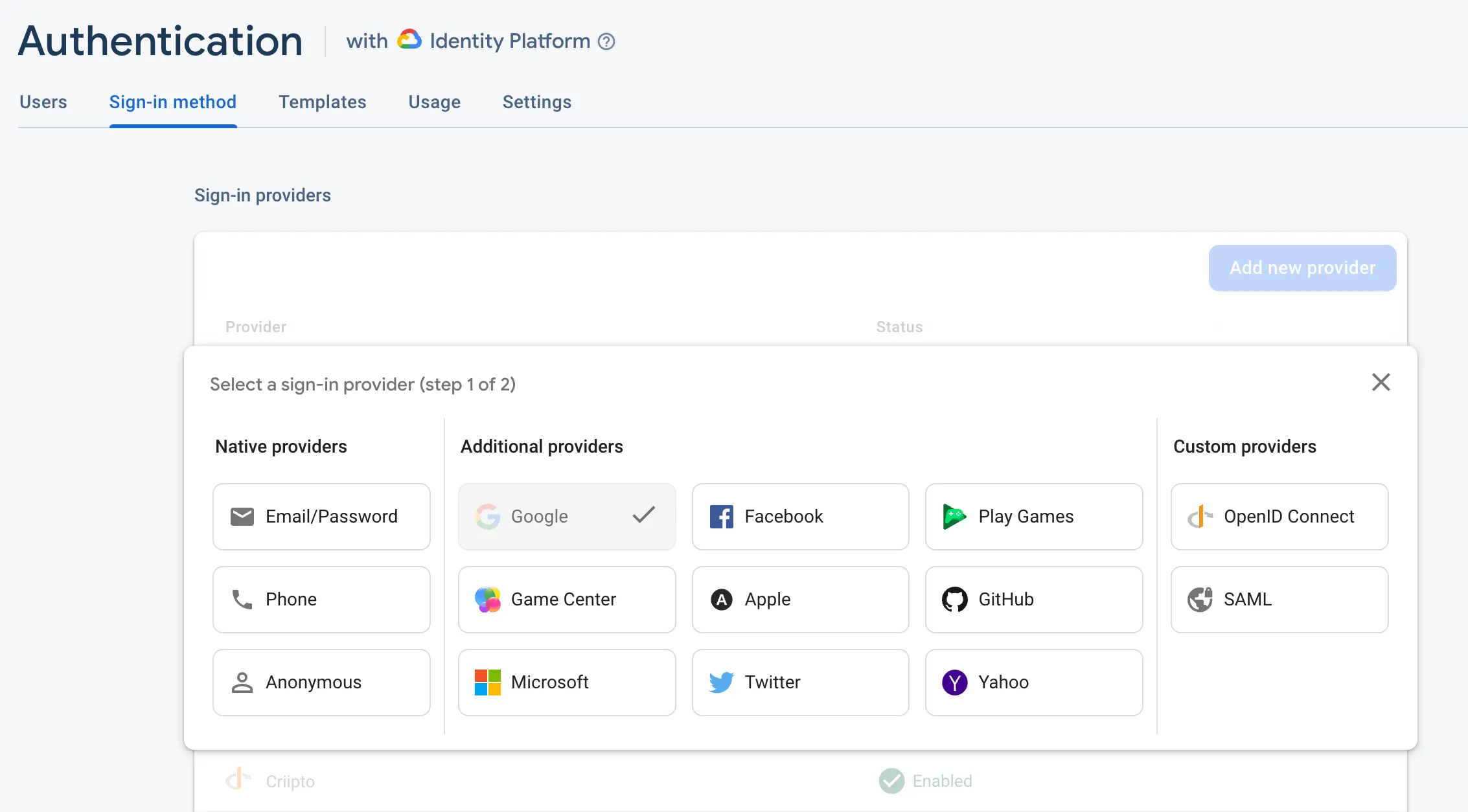
https://acme-corp.idura.broker).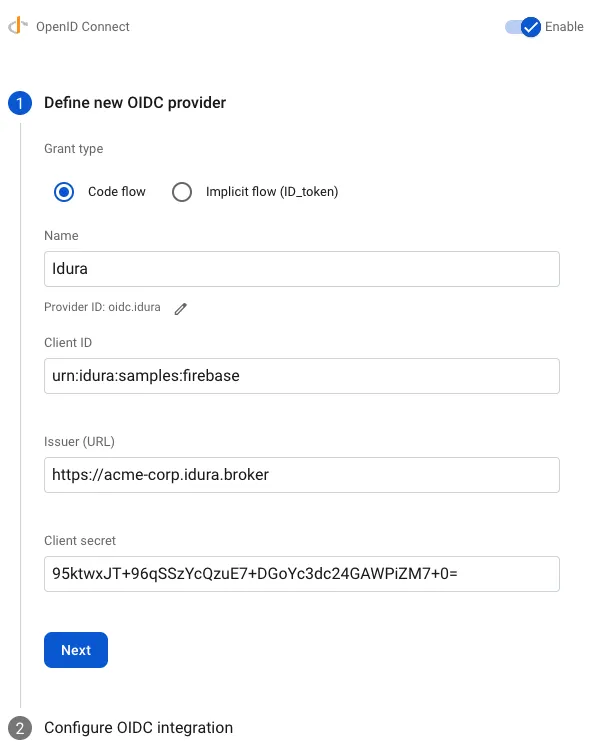

You can handle the entire sign-in flow with the Firebase SDK, or choose to handle it manually. The latter option is useful if you’ve already implemented one of Idura’s SDKs in your application.
As mentioned above, you can choose the manual setup and use the ID token directly to authenticate with Firebase.
For instance, if you’re working with our React SDK, you can use the id_token property of the result object to retrieve the ID token after the user signed in with Idura Verify.
import { useCriiptoVerify } from '@criipto/verify-react';
import { getAuth, signInWithCredential, OAuthProvider } from 'firebase/auth';

const provider = new OAuthProvider('oidc.criipto');

function App() {
  const { claims, result } = useCriiptoVerify();

  // Handle Firebase sign-in flow manually
  useEffect(() => {
    if (!claims) return;
    const credential = provider.credential({
      idToken: result.id_token,
    });

    signInWithCredential(getAuth(), credential)
      .then(result => {
        // User is signed in.
        // IdP data available in result.additionalUserInfo.profile.

        // Get the OAuth access token and ID Token
        const credential = OAuthProvider.credentialFromResult(result);
        const idToken = credential.idToken;
      })
      .catch(error => {
        // Handle error.
      });
  }, [claims, result]);

  // ... render your component
}
And in case of the JavaScript SDK with redirect authorization, you can use the resulting id_token from the match() call to pass to Firebase.
import { getAuth, signInWithCredential, OAuthProvider } from 'firebase/auth';

const provider = new OAuthProvider('oidc.criipto');
const match = await criiptoAuth.match();

const credential = provider.credential({
  idToken: match.id_token,
});

signInWithCredential(getAuth(), credential)
  .then(result => {
    // User is signed in.
    // IdP data available in result.additionalUserInfo.profile.

    // Get the OAuth access token and ID Token
    const credential = OAuthProvider.credentialFromResult(result);
    const idToken = credential.idToken;
  })
  .catch(error => {
    // Handle error.
  });