eIDs
Learn more about Danish MitID Erhverv token contents, how to request business logins and how to create test users.
There are two kinds of business user roles in MitID: employees and company signatories. Employees can be anyone who works at the company, and are registered by the company in MitID Erhverv. Company signatories are allowed to act on behalf of the company itself, and could e.g. be the CEO of a company. A natural person can have both an employee and a company signatory role in the same company.
A company signatory is also sometimes referred to as a management representative (DK: ledelsesrepræsentant), or as someone who is authorized to represent the company.
Employees are registered in MitID Erhverv, and are looked up based on the MitID UUID. Company signatories can be registered in MitID Erhverv, but this is not mandatory. For companies without MitID Erhverv, company signatories are instead looked up in Erhvervsstyrelsen’s systems. This is done via the CPR number of the user. So if you need company signatories, we will ask users for their CPR number when they log in with MitID Erhverv.
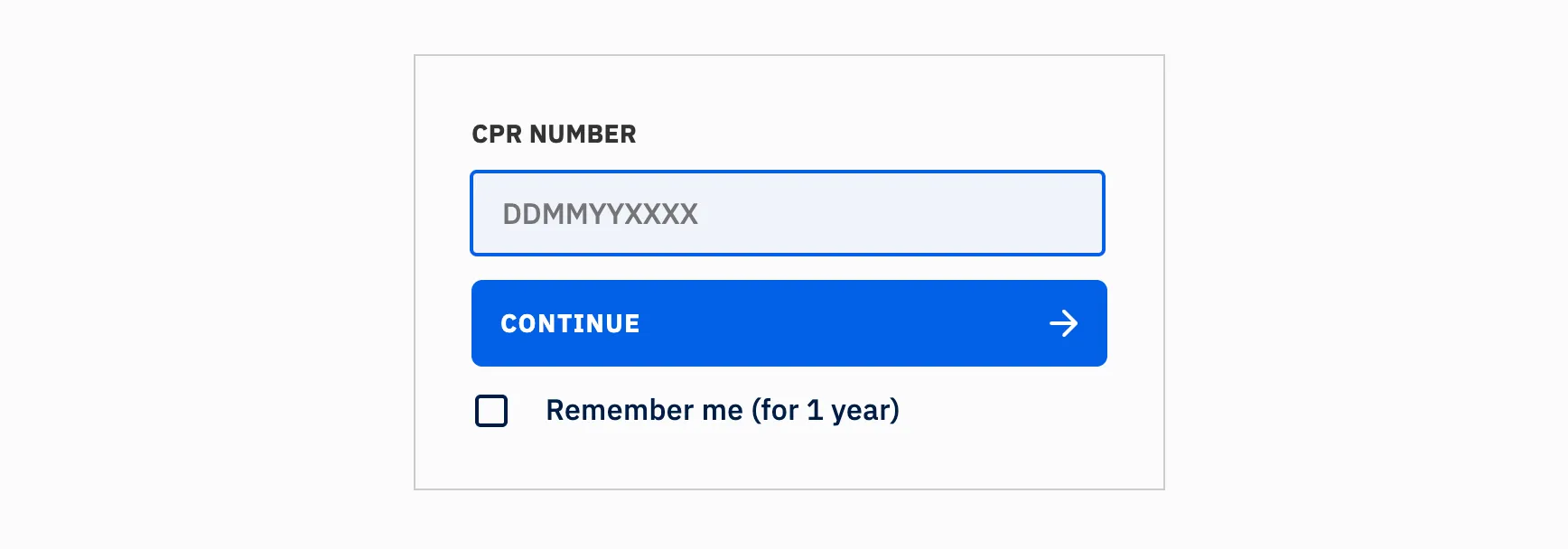
If you don’t need company signatories, you can Disable signatories for MitID business logins in your Idura Dashboard in eID providers > Danish MitID.

The sub, nameidentifier and uuid values here will not be the same as for a corresponding citizen-MitID login, even if the user chose to use their personal MitID for login.
Business users in MitID Erhverv (both employees and company signatories) may not always have CPR numbers associated with their profiles.
CPR numbers are also not required for accessing information about the business entities where the user holds a position as an employee. Idura relies on the user’s UUID to retrieve this information from the MitID Erhverv API. Therefore, if you don’t need CPR numbers in business logins, no additional configuration is required. Note that if you need company signatories, we will ask users for their CPR number even if your application does not ask for them (see above).
If you do require CPR numbers, you can collect them by enabling the two toggles on the Danish MitID eID provider screen on the Idura Dashboard:
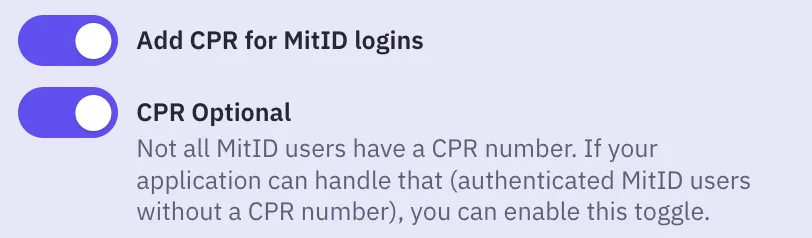
This feature can be useful in a scenario where you offer both MitID citizen logins and business logins, and require CPR numbers for the citizen logins. Please note that it is only possible to collect CPR numbers for company signatories. Employee identities are legally distinct from the personal identity of the natural person, and it is not legal to correlate the two.
You can request a login in business context via the following acr_values: urn:grn:authn:dk:mitid:business.
Alternatively, you can include a login_hint query parameter in the authorize request.
This will allow company signatories and employees to log in to your website or application with their personal MitID or their dedicated employee MitID (depending on how their company set them up in MitID Erhverv).
login_hint=business will allow logging in as a business user.login_hint=business_optional will give an option to choose to log in as a private individual, or a business user.You can determine which kind of option the user selected by inspecting the claim values in the JWT payload.
employee claim with value true.companySignatory claim with value true.If you already have an expectation of what company the user will login on behalf of, you can prefill the VAT ID (CVR number) to limit their selection choice (if multiple roles in the same company) or skip the company selector all together.
urn:grn:authn:dk:mitid:business: login_hint=vatid:DK<CVR>login_hint=business vatid:DK<CVR>To test business logins with MitID Erhverv, you need to create a test organization and a test user, then connect the user to the organization as an employee. Follow the steps below, or watch the video walkthrough.
Go to the test organization creation page and fill out the form. You can use your personal email for the organization admin, and later for the employee as well.
The wizard generates an organization admin account. You choose the password, and the username is autogenerated. Then follow Link til MitID Erhverv - IntTest to log in as the organization admin.
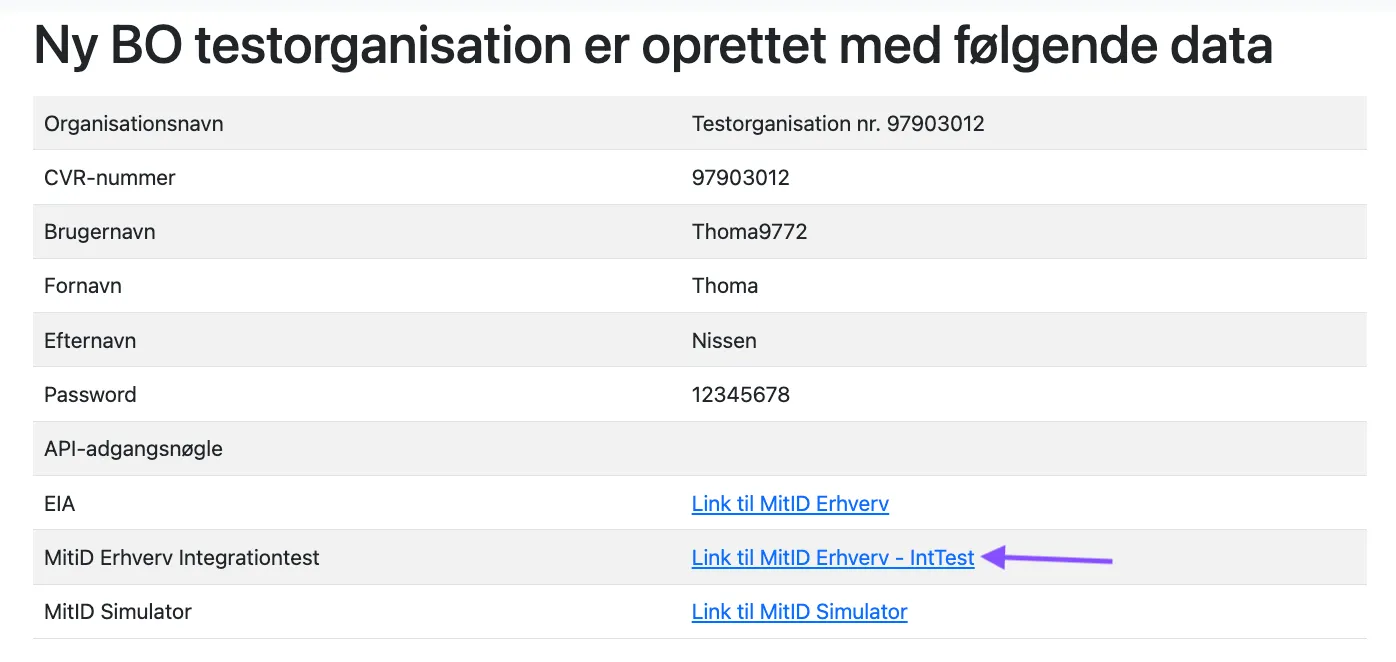
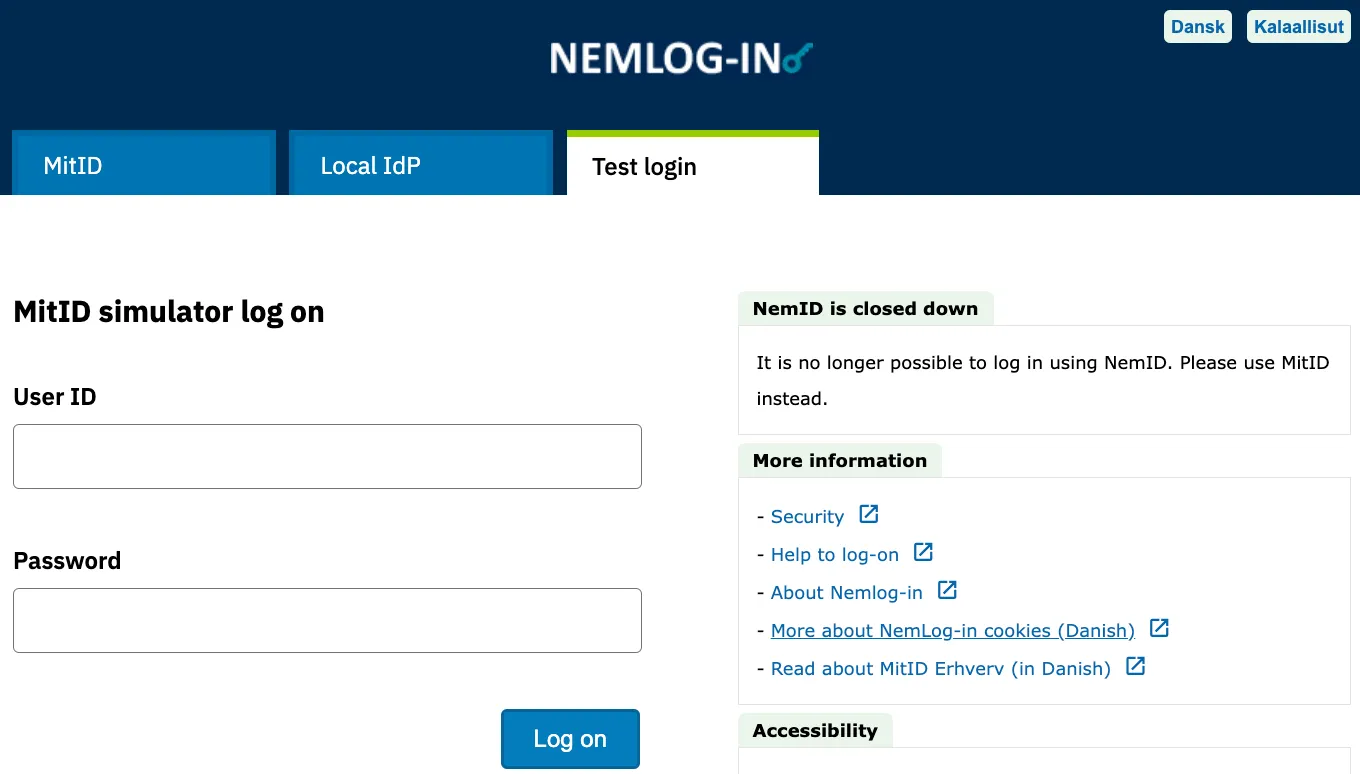
Open the Test login tab and log in as the organization admin with the username and password.
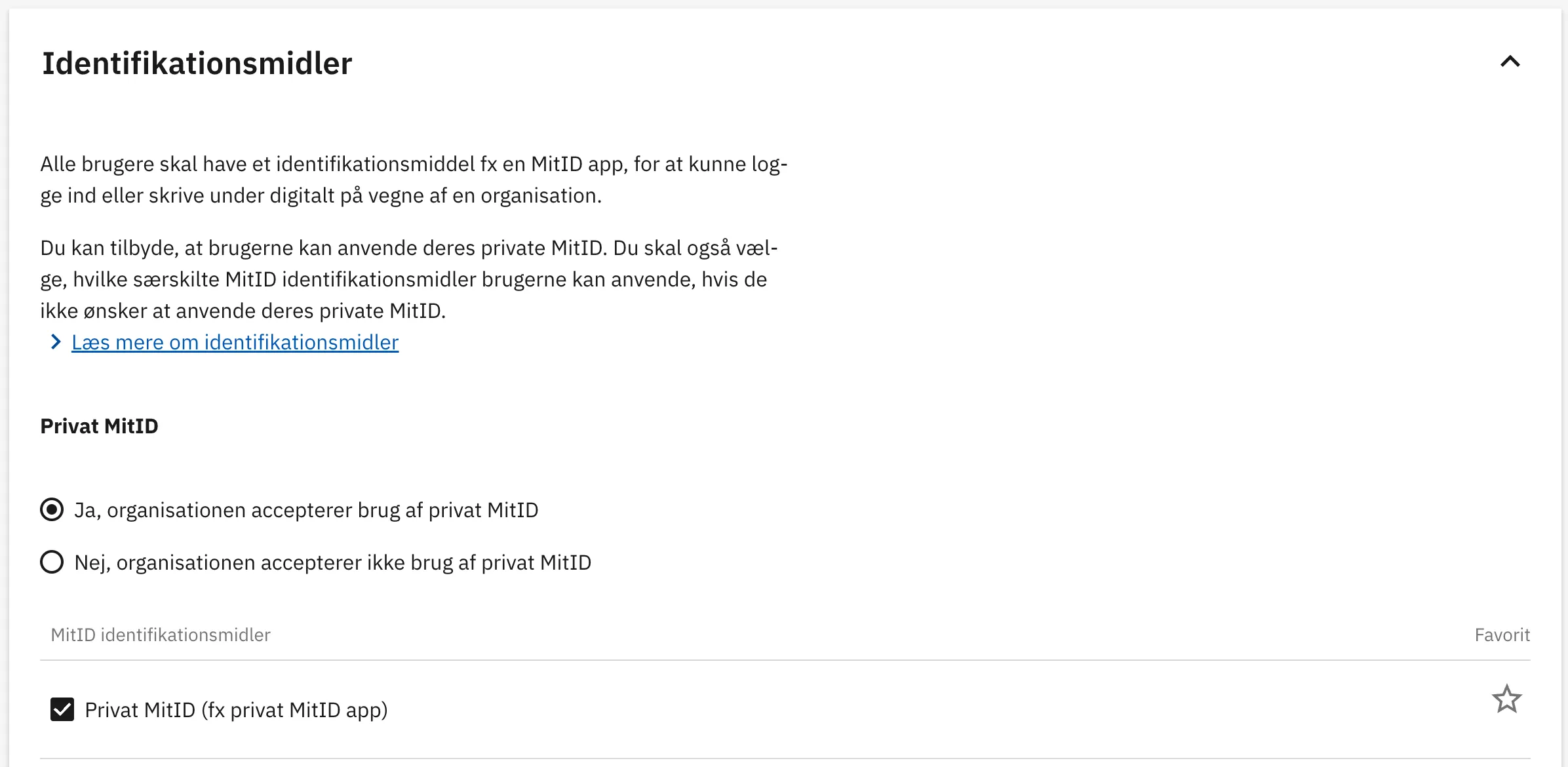
Go to EIA, the NemLog-in IdP portal. Under Settings (Indstillinger > Identifikationsmidler), enable personal MitID for the organization.
Create the same test user in two tools: the MitID Test Tool and the MitID Simulator. The test user must have the same CPR number in both tools, and can have the same user ID.
Open the MitID Test Tool. Use AUTOFILL to generate identity details, then click Create Identity.
Open the MitID Simulator. Enter the same identity details, including the CPR number, and check Private MitID, as shown in the screenshot below.
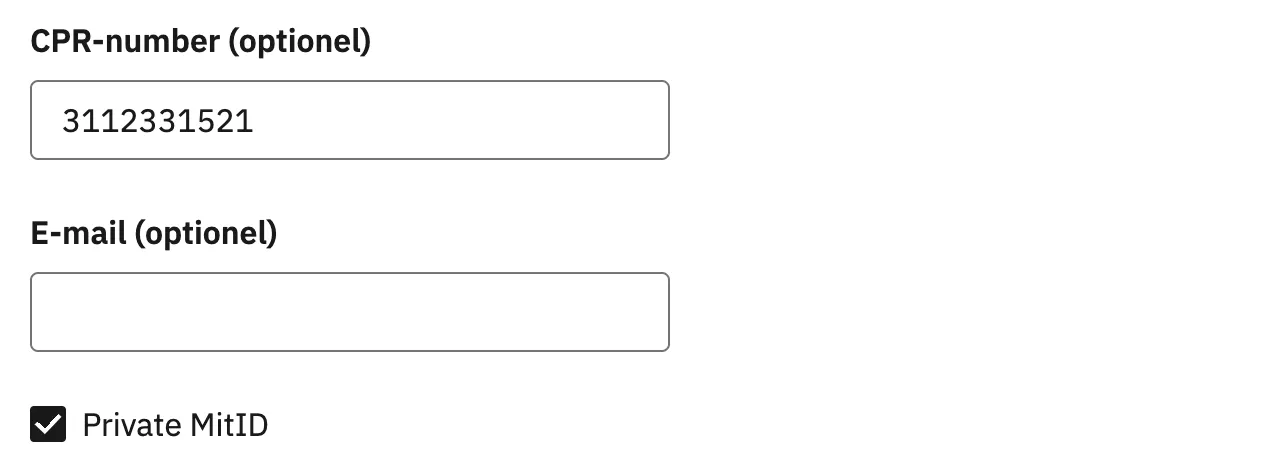
In general, and most likely for MitID Erhverv production, CPR numbers are expected to be optional.
As the organization admin, create an employee for your test user in EIA. Use the test user from step 2. The organization admin account can’t log in as an employee.
You’ll receive an activation link at the email address you entered for the employee. Follow the link to log in as the employee.
If the activation email doesn’t arrive, log in to EIA as an employee on the MitID tab instead. (You need to log out of your EIA admin account first, or use a different browser.)
If you followed the steps correctly, your EIA dashboard now looks like this:
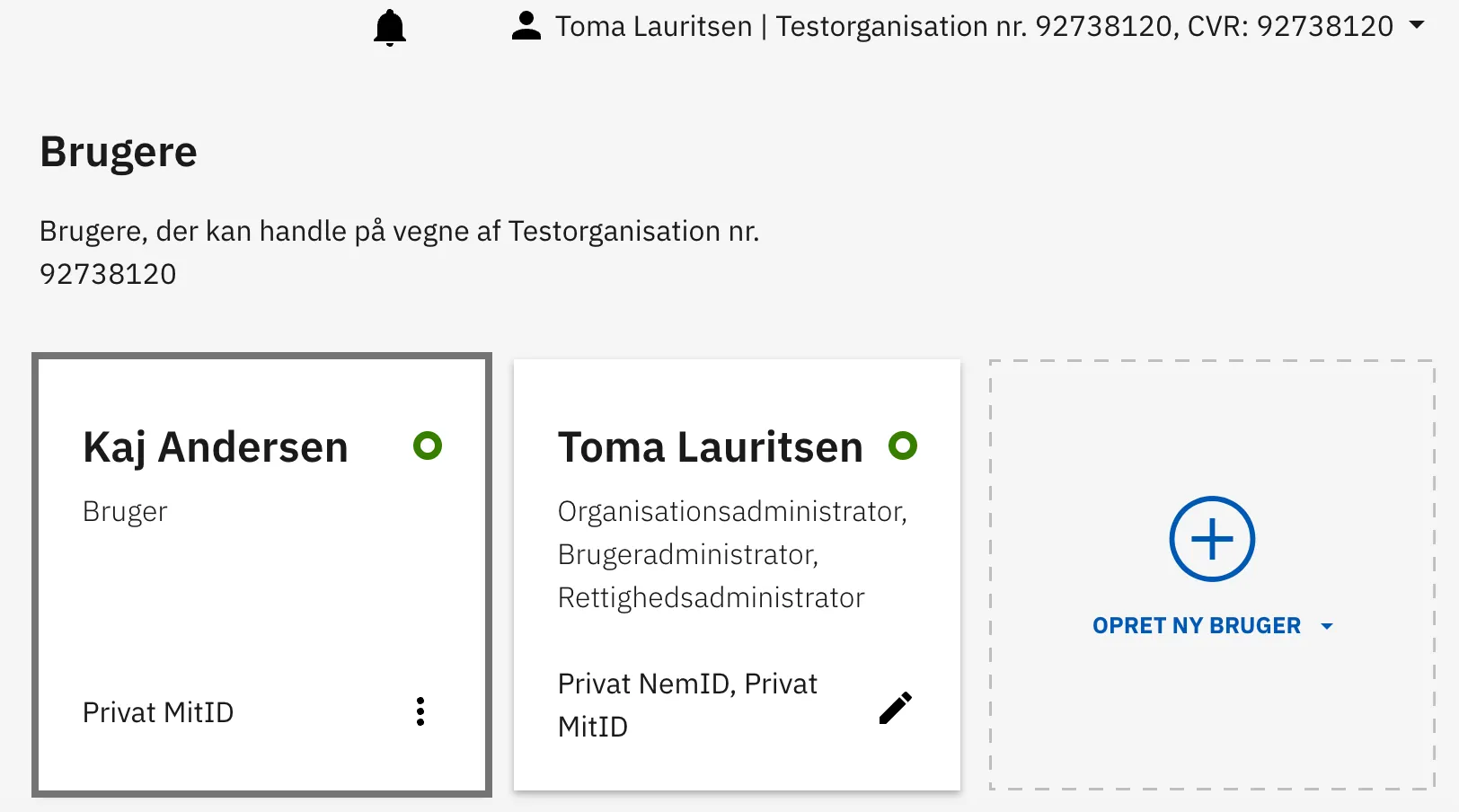
If the organization admin has enabled personal MitID, the employee can use their own test MitID for activation. It is still required to provide a unique employee MitID username during enrolment.
As the organization admin, you can include additional information when you create test users, such as:
You can configure this in EIA under Settings (Indstillinger > Oprettelse af brugere):
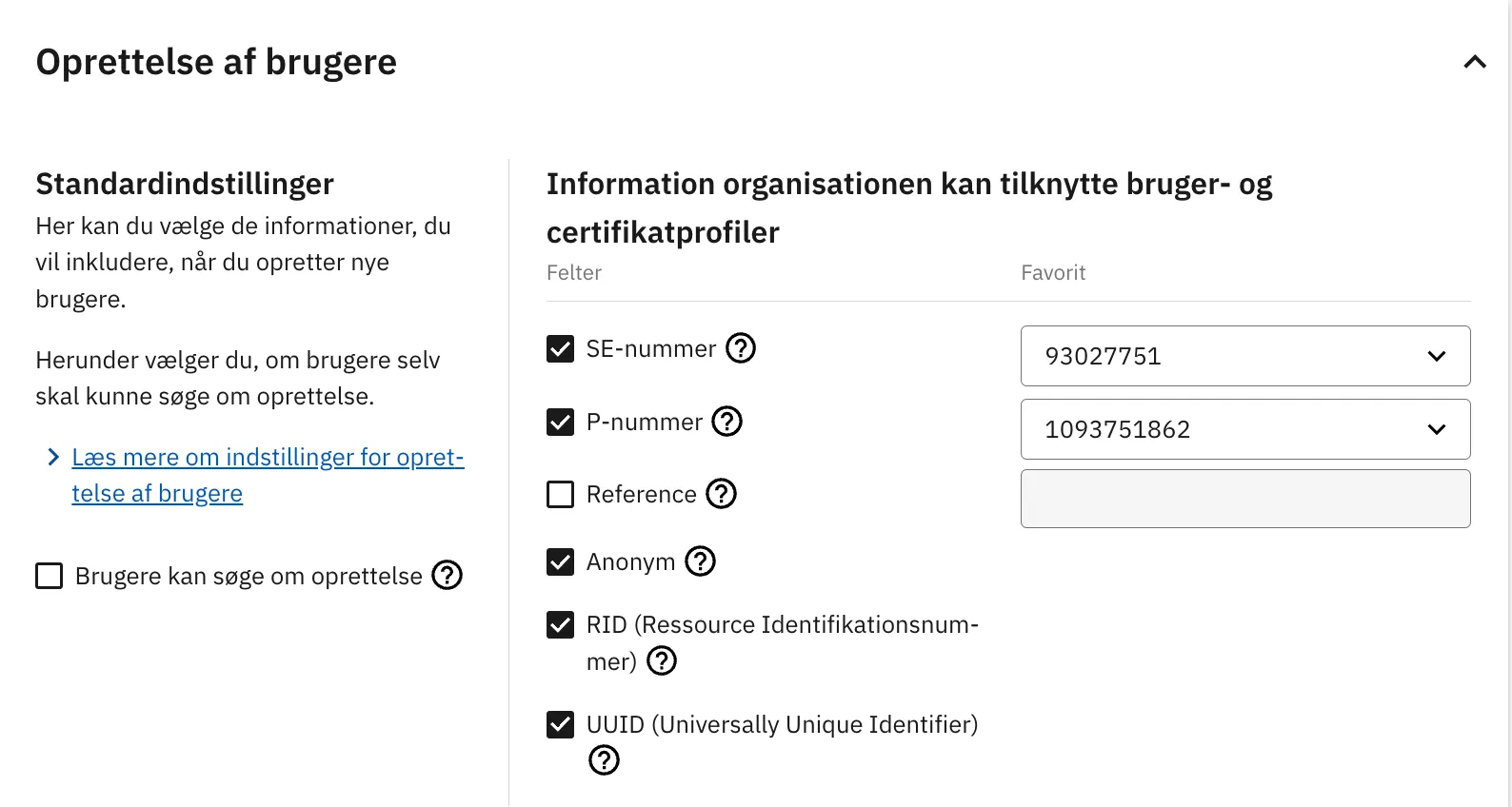
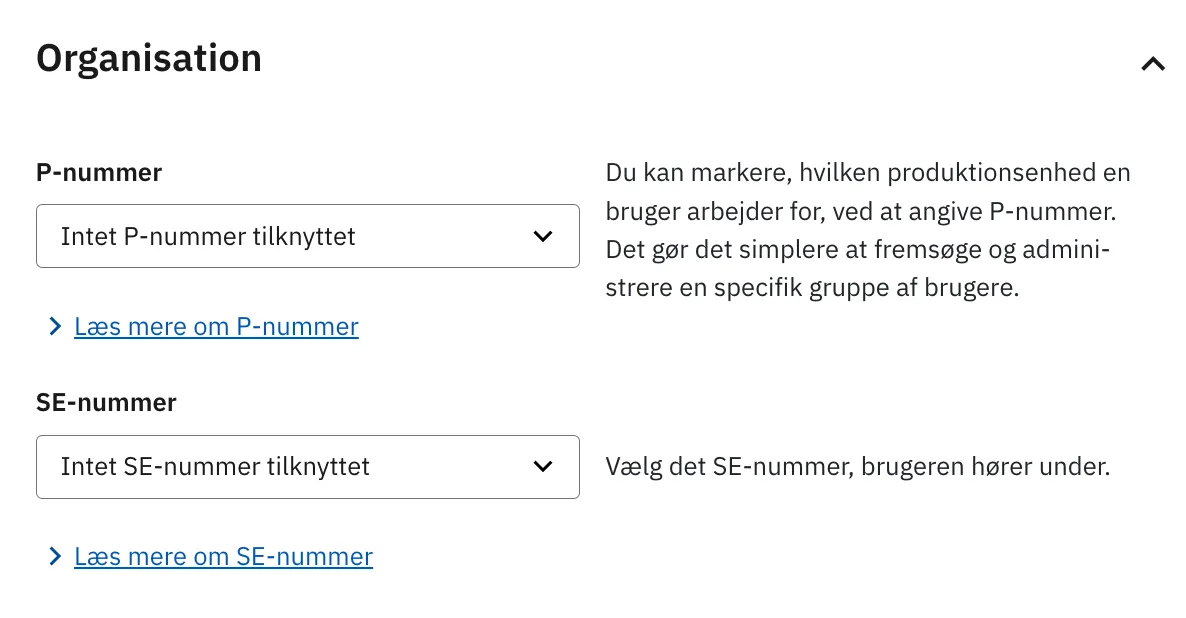
If you enable P and SE numbers after creating test users, the existing users won’t get the values automatically. Update each user in the user configuration section, under Organisation: