eIDs
Learn more about Vipps MobilePay token contents, how to create test users and how to gain access to production.
To test Vipps MobilePay, you need to install the Vipps app in a test version on your device. Follow the Vipps guide with instructions on how to set up test apps.
Creating a test user with Vipps MobilePay requires a test phone number and NIN/SSN. To request both, please send an email to orders@idura.eu and include “Vipps MobilePay test credentials” in the subject line.
Username is always made available.
For applications configured to use a static scope strategy, address, email, phone and birthdate are always made available.
You can also configure your tenant so it requests SSN as well.
For applications configured to use a dynamic scope strategy, the following scope tokens can be supplied: address, email, phone, birthdate, gender and ssn (scope=openid phone email...).
The gender scope returns a gender claim. It is a user-chosen value and is only made available when the user has registered a gender with Vipps MobilePay. The possible values are male, female, other and prefer not to say.
https://YOUR_SUBDOMAIN.idura.broker/oauth2/authorize?scope=openid phone ssn&...Alternatively, you can send them in the login_hint
https://YOUR_SUBDOMAIN.idura.broker/oauth2/authorize?...&login_hint=scope:phone scope:ssn&...which can be a useful if you are working with technology that does not let you control the scope value.
Vipps MobilePay has two brandings: Vipps (used in Norway and Sweden) and MobilePay (used in Denmark and Finland). By default, users are shown the Vipps branding.
You can select which branding a user is shown for a given request by passing a market token in the login_hint, using a country code:
login_hint | Branding |
|---|---|
market:NO | Vipps |
market:SE | Vipps |
market:DK | MobilePay |
market:FI | MobilePay |
https://YOUR_SUBDOMAIN.idura.broker/oauth2/authorize?...&login_hint=market:DK&...If the market token is omitted or the value is not one of the supported markets, the default Vipps branding is shown.
You can try this out in the Authorize URL Builder by selecting Vipps MobilePay and picking a market.
To start accepting real user logins, you must register with Vipps MobilePay as a merchant and receive a set of secret keys (client credentials).
You must meet the following requirements to be registered as a merchant.
You can register as a merchant by signing an agreement with Vipps MobilePay. Use the links below to start registration via Idura’s partner setup.
Vipps MobilePay Login for Customer Service: Use this option if you want to authenticate callers when they contact your customer service.
Vipps MobilePay Login for Online Web: Use this option if you want to use Vipps MobilePay Login on your webpages to pre-fill user information.
Please consider the notes below when filling out the registration form:
After you request client credentials by filling out the online agreement, your application is processed by Vipps. If you are approved, the designated contact person will receive the credentials.
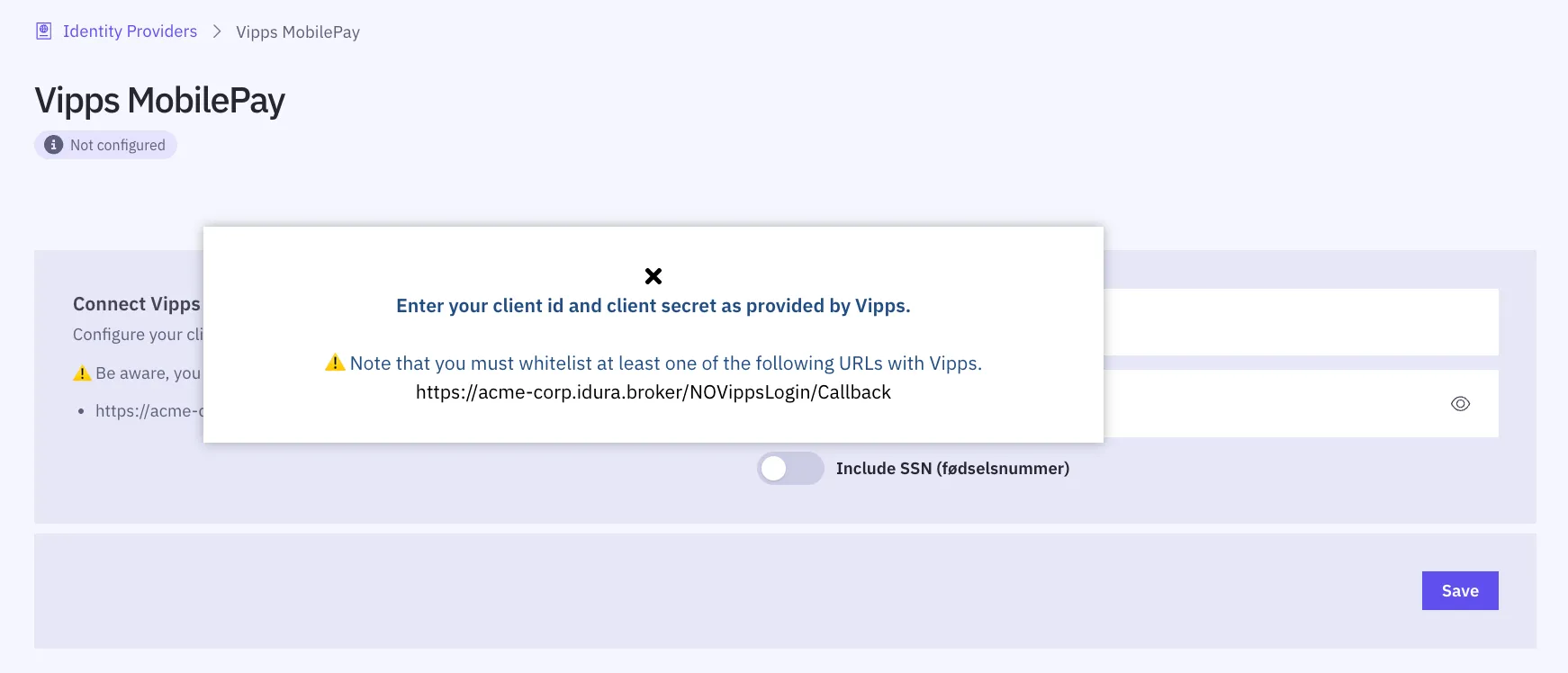
Once you have received the client credentials, enter them into the Idura Verify management UI to configure your Vipps MobilePay integration.