eIDs
Learn how to authenticate users with Norwegian BankID via Idura. This page covers token contents, test user creation, production access, consent model, and other BankID specifics.
Idura is part of Stø (the company behind Norwegian BankID) and helps you add BankID logins to your website or application. You integrate with Idura using one of our SDKs or a standard OpenID Connect library. We handle the BankID API integration for you. When you’re ready to go live, you order client credentials from Stø through the Idura dashboard.
| Country | Norway |
| Operated by | Stø AS |
acr_values |
|
| Levels of assurance (LoA) | Substantial (BankID Biometrics) · High (Kodebrikke authenticators) |
| User data | birthdate · family_name · given_name · name · country |
| Optional user data |
|
| Caller authentication | Sikker samtale |
Once a user has successfully authenticated with BankID, Idura Verify issues an ID token in JWT format to your application. The token contains a set of claims about the user and the authentication event itself. The examples below show the structure of the ID tokens issued for Norwegian BankID logins.
Triggered with acr_values=urn:grn:authn:no:bankid:high (or acr_values=urn:grn:authn:no:bankid)
The level of assurance for these authenticators are: High
The uniqueUserId identifies the legal person corresponding to the login, and is not considered sensitive.
Triggered with acr_values=urn:grn:authn:no:bankid:substantial
The level of assurance for this authenticator is: Substantial
Note that there is no certsubject returned when using Biometrics.
Test users are created through the web page at https://ra-preprod.bankidnorge.no/#/search/endUser.
BankID app is enabled in the “HA services” section, if you want to use BankID Biometric.It can take up to 1 hour before a newly created test user is activated.
You can test it out at our authentication demo site, which is a small sample hosted by Idura.
If you run into issues with test users created earlier (e.g. errors when entering the one time password), your test user certificate might have expired.
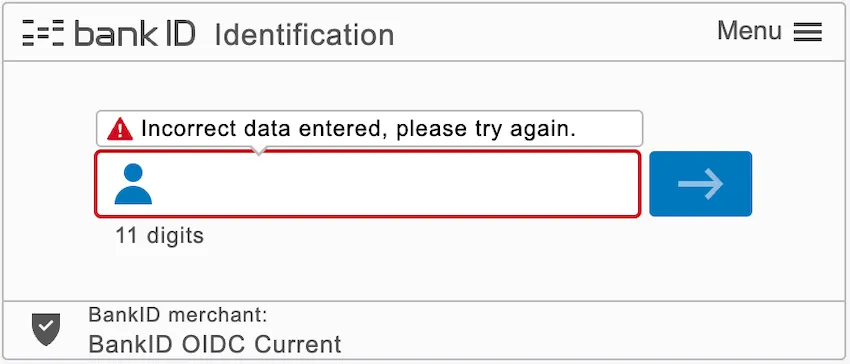
This can be fixed by ordering a new netcentric BankID:
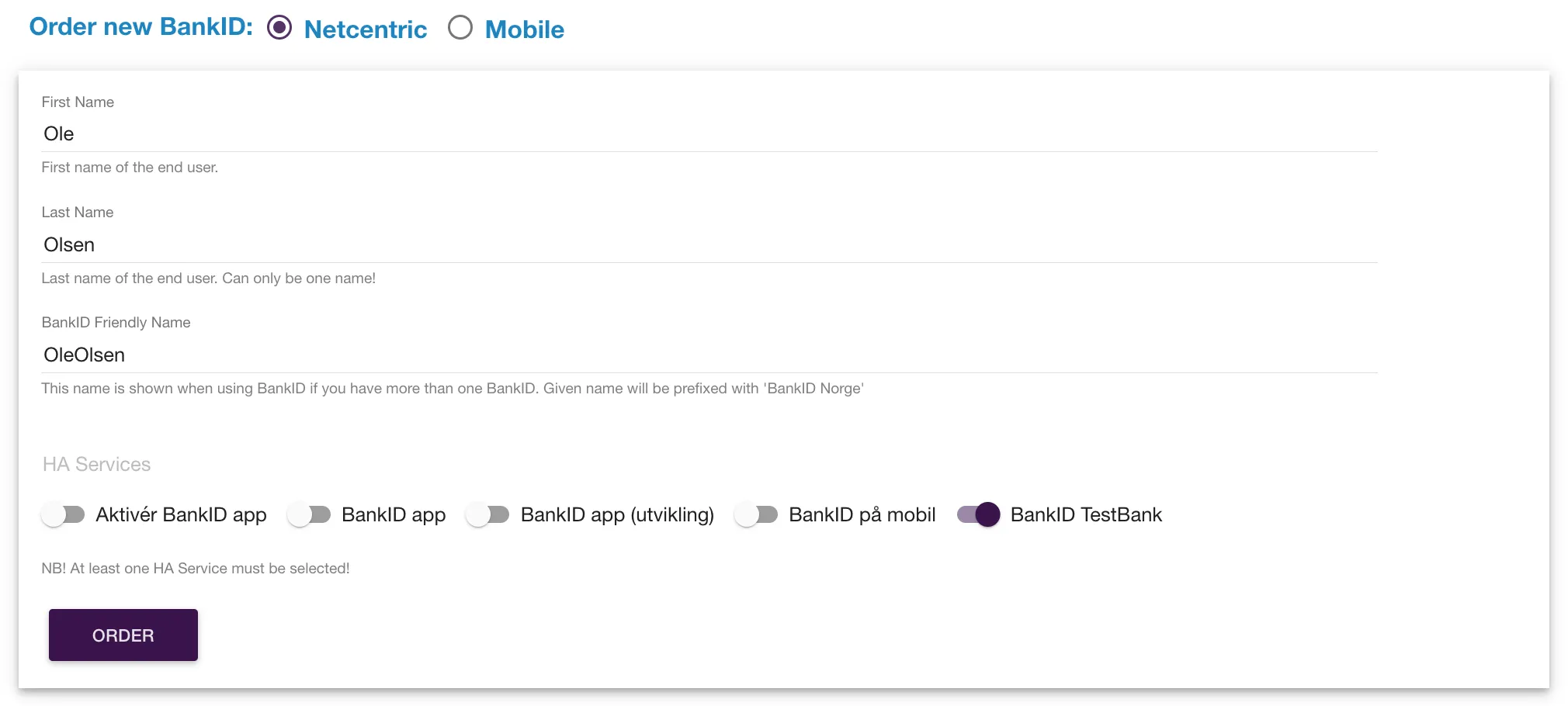
Start by creating a netcentric test user as described above.
You will then need to install the test version of the BankID App. Contact our support team to get access to the iOS (distributed via TestFlight) or Android version of the test app. In your request, please provide the email address linked to your Apple ID (for iOS) or your Google account for the Play Store (for Android) used for testing. Our team will get back to you with confirmation and download links for the test app.
The app must be activated before first use:
Basic user information, full name, and date of birth are always made available.
Additionally, you can request the user’s social security number (SSN) by including the ssn scope in your authorize request. (Note that your application must be configured to use dynamic scope strategy.)
Norwegian law governs access to SSN. You request access as part of ordering Norwegian BankID in the dashboard.
| Data type | Released | Verified | scope | login_hint |
|---|---|---|---|---|
| Full name | Always | Yes | ||
| Date of birth | Always | Yes | ||
| SSN (“fødselsnummer” in Norwegian) | User consent | Yes | ssn | scope:ssn |
https://YOUR_SUBDOMAIN.idura.broker/oauth2/authorize?scope=openid ssn&...Alternatively, you can send the scope in the login_hint
https://YOUR_SUBDOMAIN.idura.broker/oauth2/authorize?...&login_hint=scope:ssn&...which can be useful if you are working with technology that does not let you control the scope value.
Stø requires that end-users explicitly consent to sharing their SSN with your application.
To enable SSN access, both a dashboard configuration and a consent collection mechanism in your application UI are required.
1. Configure the dashboard
In the Idura Dashboard, navigate to the Norwegian BankID provider page. In the SSN consent section, select Already granted.
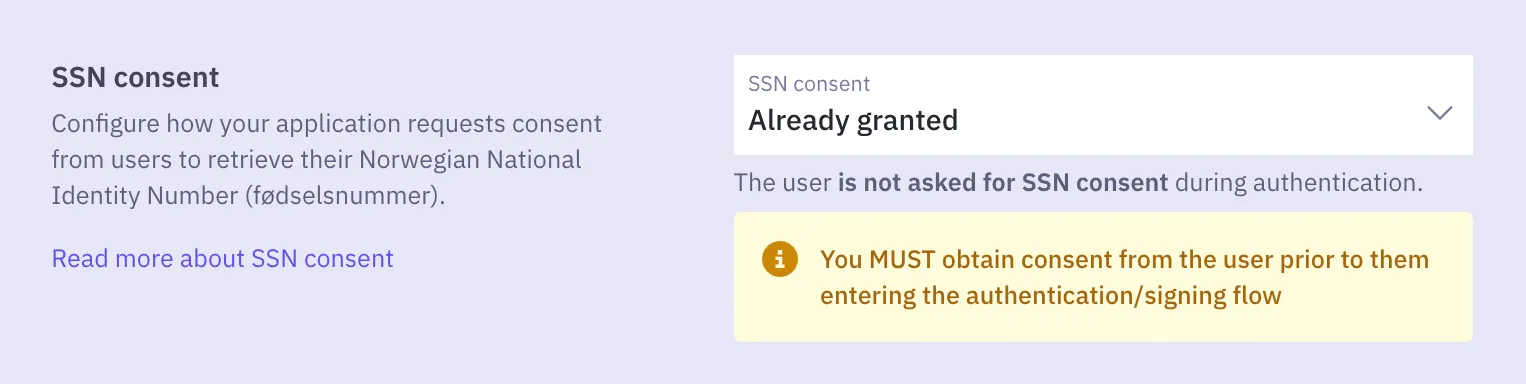
2. Collect consent from your end-users in your website or application
By selecting Already granted, you take responsibility for obtaining the user’s consent to release their SSN before they start the BankID login flow.
In practice, this means adding a step to your application where the user agrees to share their SSN — for example, an explicit consent checkbox, or a notice on the login screen that references your terms of service and privacy policy. The exact implementation is up to you and your legal team.
Idura stores SSN consent for 1 year per tenant. After that period, the user must provide explicit SSN consent again.
Idura does not store the SSN itself, just the fact that the user has granted your tenant access to it.
You can add a "forget-me" link on your website if you want to let users revoke the consent again. Use a normal authorize request as target, but add a prompt=consent_revoke query parameter to the request. Idura will then run a login flow (to be able to recognize the end user), and delete the granted consent.
You can learn more about authorize requests in our authorize URL builder.
You can tweak core operational parameters and configure access to the optional user data on the Norwegian BankID eID provider page of the Idura Dashboard.
BankID Biometrics assurance level is “Substantial”.
Learn more about assurance levels.
If you can only use assurance level “High” in your login flow, you must explicitly specify the login_hint=BID in your authorize requests to Idura Verify. Please note that using login_hint=BID will disable biometrics in the BankID app.
By default, the user flow is controlled by the user-defined settings of the BankID app: no additional configurations required. If necessary, you can adjust the user flow by adding a login_hint to the authorize URL.
The table below provides a list of options for using login_hint with Norwegian BankID, and the resulting user flows. Check our guide on prefilled fields to learn more.
| Parameter name | Description |
|---|---|
login_hint=BID | The user will be redirected to the BankID app, with biometrics disabled. The user will be queried for userID(i.e. national identity number) in the first dialogue. |
login_hint=BID:[SSN], where [SSN] has the format DDMMYYXXXXX | The user will be redirected to the BankID app (with biometrics disabled) along with a pre-selected userID. The userID dialogue is omitted in this case. |
login_hint=BIS | The user will be redirected to the BankID app. The user will be queried for userID in the first dialogue. This option does not disable biometrics. |
login_hint=BIS:[SSN], where [SSN] has the format DDMMYYXXXXX | The user will be redirected to the BankID app with a pre-selected userID. This option does not disable biometrics. |
no login_hint provided | The default settings of the BankID app on the user’s device will determine the flow (whether biometrics are enabled or disabled). |
Sikker samtale (“secure conversation”) lets an agent verify a caller’s identity with BankID during a phone call.
For details and integration instructions, see Caller Authentication with CIBA.
To start accepting real users with Norwegian BankID, you must order your client credentials from Stø. The credentials consist of a client id and a client secret. You order them through the Idura dashboard.
Prerequisites for ordering
To order BankID client credentials for your company, you must meet these basic requirements:
The BankID OIDC Biometrics option is always included in the basis agreement.
To order:
After you submit, Idura reviews your order. Your signatories then receive the agreement for signing. Once everyone has signed, Stø issues your credentials. Expect around 10-13 working days from submission until you receive your credentials. The dashboard shows the status of your order.